
This is how to make a basic form using Hubbli.

First, go into your dashboard. You do that by clicking the little House button at the top of the page.

Once you’re in the Dashboard, hover over the Forms button and click on New Form.

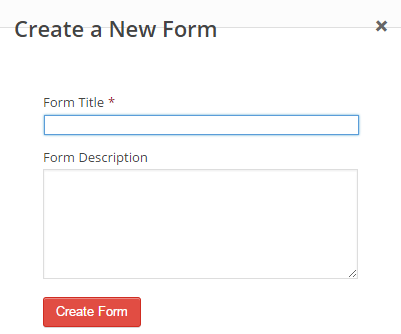
When you click on New Form, you’ll be sent to the Forms page and you’ll see this. Enter the name of the form, a description isn’t necessary but you can add one if you want, and click Create Form.
Instructions on how to make a form will show up every time you create a new form, and will disappear once you add fields.

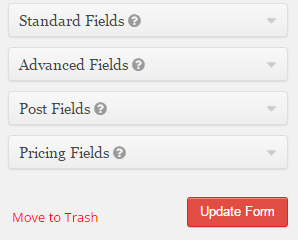
Choose a field and click on it. There are several options in each tab, for example, the Advanced Fields tab has the Name, Date and Address fields.

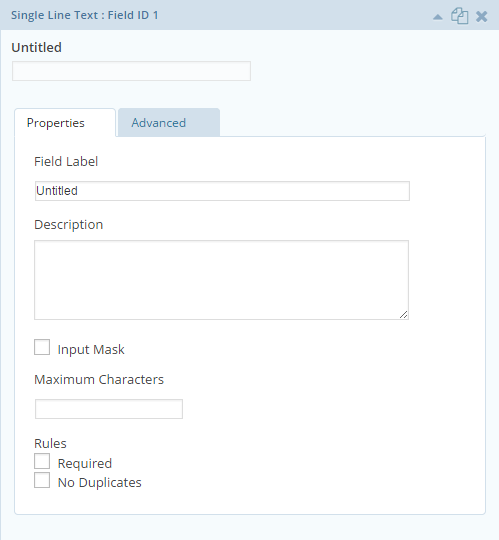
Once the field you’ve selected is in the form, you can edit it by clicking on it. You click to close it, as well. Add as many fields as necessary to complete the form.
Once you’ve added all the necessary fields, click on Update Form, and you’re done!
That’s how to create a basic form using Hubbli! And as always, if you would rather we just take of this for you then by all means call 1-888-415-4450, email support@hubbli.com or book a support session at https://support.hubbli.com/support-calendar and we’ll take care of this for you.